SMTP accounts
Create accesses, manage credentials, rotate passwords and block accounts.
Under SMTP accounts you manage the accesses your devices and applications use to submit mail. Each access has its own username, password and a fixed sender domain.
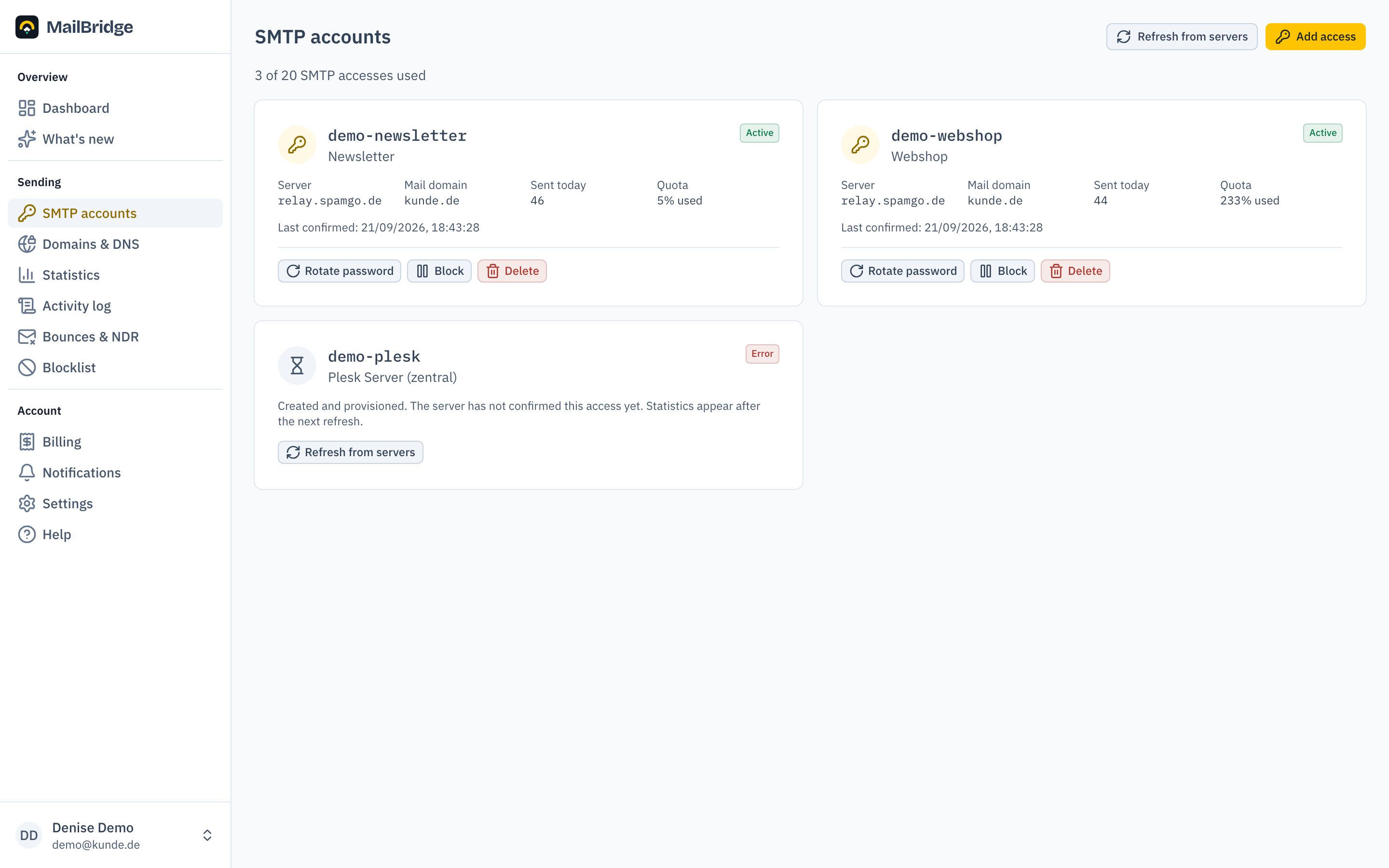
Creating an access
Click Add access, pick a descriptive name (e.g. "Scanner reception" or "Shop order confirmations") and choose the sender domain. How many accesses you use and how many are possible is shown above the list. A Bridge account includes up to 20 SMTP accesses, an agency account 50 across all client projects.
One access per application pays off: the activity log shows which application sent what, and a compromised access can be blocked without disturbing the rest.
Credentials and configuration sheet
The password is shown exactly once, right after creation. It is not stored and cannot be displayed again.
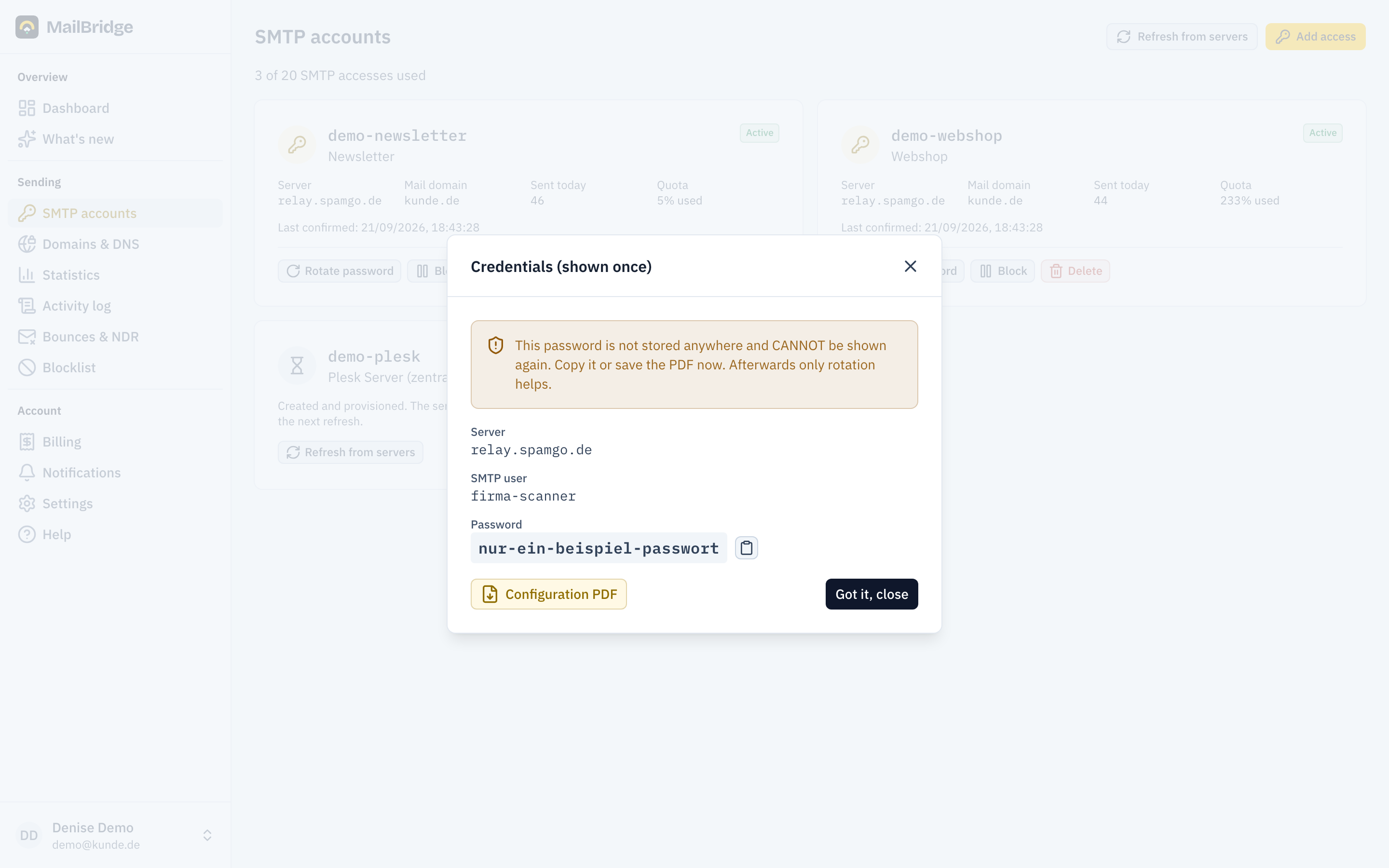
Every access comes with a PDF configuration sheet containing server, port, username and password, handy to pass on to whoever sets up the scanner or software. The connection details at a glance:
| Setting | Value |
|---|---|
| Port | 587 with STARTTLS (alternatively 25 with STARTTLS) |
| Authentication | AUTH PLAIN / LOGIN after STARTTLS |
| Sender address | must belong to the access's sender domain |
Lost or compromised password
Open the access and generate a new password. The old one becomes invalid immediately; the new one is again shown exactly once. Re-enter it everywhere the access is used.
Blocking and deleting
Block disables the access on the server. Devices with these credentials cannot send until you unblock it. Delete removes the access permanently; the logs of past sendings are kept.
Understanding the status
Each account card shows the provisioning state: right after creation an access is briefly "provisioning" until the sending server confirms it, normally under a minute. If an access gets stuck or reports an error, it also appears on the dashboard under "Needs attention".
You will find this feature in the customer portal: my.mailbridge.email, included in every plan.
No account yet? Try it free for 14 days, payment details are only needed afterwards.
Diese Seite auf Deutsch: deutsche Fassung